Add From Server Lite and Pro: Every Question Answered
If WordPress keeps telling you a file exceeds the maximum upload size, you are not alone. Hosts cap uploads, PHP caps uploads, and raising those limits is not always possible on shared hosting. Add From Server takes a different route: you put the file on the server yourself, and the plugin registers it in the Media Library.
We built and maintain both versions, and every answer below is checked against the plugin source code, not marketing copy. If something here does not match what you see on your site, tell us.
The Short Answer
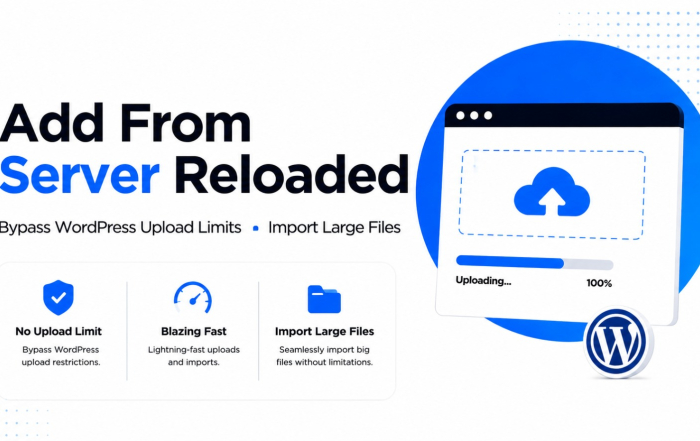
Add From Server Lite (free) lets you upload files with FTP, SSH or your host’s file manager, then browse those folders in wp-admin and import them into the Media Library. It does not raise upload_max_filesize. It skips the browser upload entirely, so that limit never applies. For a step-by-step walkthrough, see how to bulk upload files to WordPress via FTP.
Add From Server Pro is a paid add-on that runs on top of Lite. It adds background imports, pause, resume and retry, import history, scheduled imports, remote FTP, FTPS, SFTP and S3-compatible sources, folder structure preservation, smarter duplicate handling, email alerts, role-based access, a REST API and WP-CLI.
Jump to: Getting started | Requirements | Security | Importing with Lite | Lite vs Pro | Background imports | Scheduled imports | FTP, SFTP and S3 | Duplicates | REST API and WP-CLI | Pricing | Troubleshooting
Getting Started with Add From Server
What does Add From Server Lite actually do?
It imports files that are already on your server into the WordPress Media Library. You upload the files yourself with FTP, SSH or a host file manager, open AFS Lite in wp-admin, browse to the folder and import. The import runs in small chunks over AJAX while you keep the Import page open.
Do I need Pro just to import a few large videos?
No. Browsing and importing into the Media Library are free. Keep the Import page open until the job finishes and you are done.
Do I still need the free plugin if I bought Pro?
Yes. Pro is an add-on and will not run without Lite. If Lite is missing, Pro shows a notice in wp-admin and deactivates itself. Keep both installed and active.
Does importing delete or move my original files?
No. Files are copied into the WordPress uploads folder and registered as attachments. Your source files stay where they are.
Will uninstalling the plugin delete my imported media?
No. Uninstalling removes the plugin’s own options, job tables and scheduled hooks. Media Library attachments created by imports stay.
Requirements and Hosting
What WordPress and PHP versions do I need?
- Add From Server Lite: WordPress 6.2 or newer, PHP 7.4 or newer.
- Add From Server Pro: PHP 7.4 or newer and Add From Server Lite 6.0.0 or newer. Since Pro needs Lite, WordPress 6.2+ applies to Pro as well.
Do I need root access or php.ini changes?
No. You only need a way to put files on the server: FTP, SFTP, SSH or your host’s file manager. No root access, no php.ini edits and no special PHP extensions for the normal Lite import.
Will it work on shared hosting?
Usually, yes. Lite imports in short chunks, which suits shared hosting. Three things to know:
- Keep the Import page open. Lite has no background mode.
- Your host’s PHP
open_basedirsetting may limit which folders you can browse, often just WordPress or the uploads folder. - Very large single files or heavy thumbnail generation can still hit host time limits.
Does it work on WordPress Multisite?
Yes, as a normal per-site plugin. Settings and the Media Library are separate on each site. For Pro, subsites use the license that is activated on the main site.
Browsing, Root Folder and Security
Why can’t I see my whole server?
On purpose. Browsing is limited to the root directory set under Settings, and also by PHP open_basedir. If you have not saved a root, the plugin picks a safe default based on your WordPress paths. Anything outside the root is blocked.
Can I change the browse root?
Yes, under Settings. Leaving it empty falls back to the default. Developers can also set it with the ADD_FROM_SERVER_RELOADED constant (the older ADD_FROM_SERVER constant still works).
Is it safe? Can someone import PHP files?
Not by default. Imports must stay under the configured root, and dangerous extensions like PHP, EXE and shell scripts are blocked. WordPress file type rules also apply. All forms and AJAX requests use nonces and capability checks.
There is an Allow dangerous types checkbox in Settings. It turns off the extension blocklist and also allows types WordPress normally refuses, such as SVG. Leave it off unless you know exactly why you need it.
Can I import SVG or unusual file types?
Only if WordPress already allows the type, you enable Allow dangerous types, or the user has the unfiltered_upload capability. RAW camera formats only work when WordPress or another plugin registers that file type.
Can other users see my import jobs?
Normally users only see their own jobs, while admins with manage_options can manage everyone’s. Pro’s Access Control adds finer per-role permissions.
Importing with Add From Server Lite (Free)
How do I import a whole folder?
Go to Import, select the folder or files, then move through Options and Review and start the job. The folder is scanned in chunks, then files import in chunks of about five, with each chunk time-limited so your host does not time out.
Do I have to keep the page open?
Yes on Lite. The open Import page drives each chunk, so closing the tab stops the import. Files already imported stay. To leave the page while it runs, you need Pro background imports.
Can I cancel an import?
Yes. Cancel stops the job. Files that were already imported stay in the Media Library.
Where do imported files land?
In the normal WordPress year/month uploads structure. With Pro folder preservation turned on, your source folder structure is mirrored inside uploads instead.
Does Lite generate thumbnails?
Yes, by default. Pro can defer thumbnail generation to background processing, which helps on slow hosts.
Will it attach images to WooCommerce products for me?
No. It imports into the Media Library. You then assign images to WooCommerce products the usual way.
I see History, Scheduled Imports and Remote Sources in the menu but they don’t work. Why?
Those screens are previews of Pro features. They unlock when Pro is installed with a valid license.
Add From Server Lite vs Pro
| Feature | Lite (free) | Pro |
|---|---|---|
| Import from your server | Yes | Yes |
| Folder and subfolder import | Yes | Yes |
| Cancel a running import | Yes | Yes |
| Duplicates | Skipped automatically | Skip, replace or rename, plus a cleanup screen |
| Leave the page while importing | No | Yes, background via WP-Cron |
| Pause, resume, retry failed files | No | Yes |
| Import history | No | Yes |
| Scheduled imports | No | Every 5 minutes up to weekly |
| FTP, FTPS, SFTP, S3-compatible | No | Yes |
| Preserve folder structure | No | Yes |
| Defer thumbnails | No | Yes |
| Email alerts | No | Yes |
| Role-based access control | No | Yes |
| REST API and WP-CLI | No | Yes |
Add From Server Pro Background Imports and History
Can I close my laptop while it imports 2,000 files?
Only with Pro background imports. The job is processed by WP-Cron roughly every minute, so you can leave the Import page. It does depend on WordPress cron actually running, either through site visits or a real server cron job.
Can I pause, resume or retry failed files?
Yes in Pro. You can pause and resume from the import screen, and from Import History you can retry failed files, continue a job, delete a job or clear history.
Where do I see past imports?
In Import History, with per-file results. Non-admin users who clear history only remove their own jobs.
Scheduled Imports (Pro)
Can I auto-import a folder every night?
Yes. Pro schedules can run every 5, 15 or 30 minutes, hourly, twice daily, daily or weekly. Each run creates a normal import job for a folder under your root, with its own options for metadata, folder structure, duplicate handling, file type filters, size limits and chunk size.
What if a schedule is still running when the next one starts?
Each schedule has a 10-minute lock, so an overlapping run is blocked instead of importing the same files twice.
Can I run a schedule manually?
Yes, from the Scheduled Imports screen, or through the REST API and WP-CLI.
Add From Server Pro: Import from FTP, SFTP and S3
Can I import from FTP, SFTP or Amazon S3 into WordPress?
Yes with Pro. Remote imports work in two steps: Pro downloads (stages) the files into a local folder under your root, then runs a normal import job from that folder, optionally in the background. Lite does not include remote sources.
Which remote types are supported?
- FTP and FTPS: needs the PHP FTP extension. Passive mode is used after login.
- SFTP: uses the PHP ssh2 extension when available, otherwise the bundled phpseclib library, so it works on hosts without ssh2. Login is username and password.
- S3-compatible storage: endpoint, region, bucket, access key and secret, with optional path-style URLs. Works with Amazon S3 and S3-compatible providers.
Can I use an SSH private key for SFTP?
Not in the current Remote Sources screen. It uses username and password.
How many files can I stage at once?
500 files per staging run by default. Developers can change it with the afsrreloaded_remote_stage_max_files filter.
Are remote passwords stored securely?
Pro encrypts saved credentials using WordPress’s encryption functions or OpenSSL. If your server has neither, Pro warns you, and you should fix that before saving production credentials.
Duplicates and Folder Structure
How are duplicate files detected?
The plugin checks a stored file hash first, then the file path, then filename matches. In Lite, duplicates are skipped. In Pro you choose skip, replace or rename per import, and a Duplicates screen lets you clean up existing copies that share the same hash.
Why wasn’t my big file detected as a duplicate?
Files over about 64 MB are not hashed by default, so the plugin falls back to path and filename matching, which is less strict. Developers can raise the cap with the afsrreloaded_file_hash_max_bytes filter.
What does preserve folder structure do?
It mirrors your source folders inside uploads instead of using year/month folders. Files sitting at the top of the selected tree go into a prefixed folder (afsr-imports by default).
Email Alerts, Access Control, REST API and WP-CLI (Pro)
Will I get an email when an import finishes?
Yes. Alerts for completed and failed jobs are on by default, and cancelled jobs can be added. With no recipients set, emails go to the site admin email.
Can I limit which roles can use imports, schedules or remote sources?
Yes with Access Control. Each role can get separate permissions to browse, import, manage history, manage schedules, manage remote sources and manage settings. Administrators always get everything.
Is there a REST API?
Yes, under the add-from-server/v1 namespace:
| Method | Route | What it does |
|---|---|---|
| GET | /files?path= |
Browse files under the root |
| POST | /import |
Start an import of files or folders |
| GET | /jobs/JOB_ID |
Check a job's status |
| GET | /schedules |
List schedules |
| POST | /schedules/SCHEDULE_ID/run |
Run a schedule now |
Is there a WP-CLI command?
Yes:
wp afsrreloaded import --files=... --folders=... --background --preservewp afsrreloaded list-files --path=...wp afsrreloaded schedules listwp afsrreloaded schedules run SCHEDULE_ID
Can the REST API or WP-CLI pull directly from FTP or S3?
No. Both work on paths under your local root. Remote files go through the Remote Sources screen, which stages them locally first.
Add From Server Pro Pricing and Licensing
How much does Add From Server Pro cost?
- Basic: $59 per year for 1 live site plus 1 staging site.
- Standard: $79 per year for up to 3 sites.
Both include a year of updates and email support. See Add From Server Pro.
Where do I activate my license?
Your key is under My Account after checkout. Paste it in the Settings screen of the AFS menu. The license box appears there once Pro is installed.
I installed Pro but features are still locked.
Check three things: Lite is active, Pro is active, and the license shows as valid under Settings. Without a valid license, Pro features stay locked. There is no unlicensed test mode.
How often is the license checked? Does Pro update automatically?
The license is re-checked about once a week. If our store cannot be reached during a check, Pro keeps your last known status, so a network hiccup will not lock you out. Updates arrive through the normal WordPress updates screen while your license is valid.
Troubleshooting
My import stopped halfway.
On Lite, the tab was closed, the session expired or the host timed out on a heavy file or thumbnail. Import smaller batches and keep the tab open. Already imported files are skipped when you run it again. For big libraries, Pro background imports with deferred thumbnails avoid this.
I can’t browse the folder I uploaded to.
The folder is outside your root, blocked by open_basedir, or not readable. Move the files under the configured root, or widen the root in Settings if your host allows it.
Pro keeps deactivating itself.
Add From Server Lite is not active. Activate Lite first, then Pro.
My background import or scheduled import is not running.
Check that the license is valid, the schedule is enabled and WP-Cron is working. Low-traffic sites with WP-Cron disabled need a real server cron. A second run of the same schedule is blocked for about 10 minutes while the first holds its lock.
FTP login works, then listing the folder fails.
Pro uses passive FTP after login. Servers that only support active mode usually fail at this step. Ask your host to enable passive mode or switch to SFTP.
SFTP fails on my host.
Pro falls back to bundled phpseclib when the ssh2 extension is missing, so ssh2 is not required. If it still fails, confirm the license is valid, the host allows outbound connections on the SFTP port, and the username and password are correct.
Get Started
Start with Add From Server Lite on WordPress.org. It handles most large file imports on its own. If you need background, scheduled or remote imports, Add From Server Pro adds them on top. Questions not covered here? Contact us.
About the Author: Team EVOLVE